924
Lectures Watched
Since January 1, 2014
Since January 1, 2014
- A History of the World since 1300 (68)
- History of Rock, 1970-Present (50)
- A Brief History of Humankind (48)
- Chinese Thought: Ancient Wisdom Meets Modern Science (35)
- The Modern World: Global History since 1760 (35)
- The Bible's Prehistory, Purpose, and Political Future (28)
- Introduction aux éthiques philosophiques (27)
- Jesus in Scripture and Tradition (25)
- Roman Architecture (25)
- Sexing the Canvas: Art and Gender (23)
- Descubriendo la pintura europea de 1400 a 1800 (22)
- Introduction aux droits de l'homme (19)
- Buddhism and Modern Psychology (18)
- Calvin: Histoire et réception d'une Réforme (17)
- The Ancient Greeks (16)
- À la découverte du théâtre classique français (15)
- The French Revolution (15)
- Letters of the Apostle Paul (14)
- Key Constitutional Concepts and Supreme Court Cases (14)
- Christianisme et philosophie dans l'Antiquité (14)
- Egiptología (12)
- Western Music History through Performance (10)
- The Rise of Superheroes and Their Impact On Pop Culture (9)
- The Great War and Modern Philosophy (9)
- Alexander the Great (9)
- Greek and Roman Mythology (9)
- Human Evolution: Past and Future (9)
- Phenomenology and the Conscious Mind (9)
- Masterpieces of World Literature (8)
- Villes africaines: la planification urbaine (8)
- Greeks at War: Homer at Troy (7)
- Pensamiento Científico (7)
- MongoDB for Node.js Developers (7)
- Fundamentos de la escritura en español (7)
- Introduction to Psychology (7)
- Programming Mobile Applications for Android (7)
- The Rooseveltian Century (6)
- Karl der Große - Pater Europae (6)
- Fake News, Facts, and Alternative Facts (6)
- Reason and Persuasion Through Plato's Dialogues (6)
- The Emergence of the Modern Middle East (6)
- A Beginner's Guide to Irrational Behavior (6)
- Lingua e cultura italiana: avanzata (6)
- L'avenir de la décision : connaître et agir en complexité (5)
- Understanding Einstein: The Special Theory of Relativity (5)
- Dinosaur Paleobiology (5)
- Exploring Beethoven's Piano Sonatas (5)
- War for the Greater Middle East (4)
- Emergence of Life (4)
- Introduction to Public Speaking (4)
- The Kennedy Half Century (4)
- Problèmes métaphysiques à l'épreuve de la politique, 1943-1968 (4)
- Designing Cities (4)
- Western Civilization: Ancient and Medieval Europe (3)
- Paleontology: Early Vertebrate Evolution (3)
- Orientierung Geschichte (3)
- Moons of Our Solar System (3)
- Introduction à la philosophie de Friedrich Nietzsche (3)
- Devenir entrepreneur du changement (3)
- La Commedia di Dante (3)
- History of Rock and Roll, Part One (3)
- Formation of the Universe, Solar System, Earth and Life (3)
- Initiation à la programmation en Java (3)
- La visione del mondo della Relatività e della Meccanica Quantistica (3)
- The Music of the Beatles (3)
- Analyzing the Universe (3)
- Découvrir l'anthropologie (3)
- Postwar Abstract Painting (3)
- The Science of Religion (2)
- La Philanthropie : Comprendre et Agir (2)
- Highlights of Modern Astronomy (2)
- Materials Science: 10 Things Every Engineer Should Know (2)
- The Changing Landscape of Ancient Rome (2)
- Lingua e letteratura in italiano (2)
- Gestion des aires protégées en Afrique (2)
- Géopolitique de l'Europe (2)
- Introduction à la programmation en C++ (2)
- Découvrir la science politique (2)
- Our Earth: Its Climate, History, and Processes (2)
- The European Discovery of China (2)
- Understanding Russians: Contexts of Intercultural Communication (2)
- Philosophy and the Sciences (2)
- Søren Kierkegaard: Subjectivity, Irony and the Crisis of Modernity (2)
- The Fall and Rise of Jerusalem (2)
- The Science of Gastronomy (2)
- Galaxies and Cosmology (2)
- Introduction to Classical Music (2)
- Art History for Artists, Animators and Gamers (2)
- L'art des structures 1 : Câbles et arcs (2)
- Russian History: from Lenin to Putin (2)
- The World of Wine (1)
- Wine Tasting: Sensory Techniques for Wine Analysis (1)
- William Wordsworth: Poetry, People and Place (1)
- The Talmud: A Methodological Introduction (1)
- Switzerland in Europe (1)
- The World of the String Quartet (1)
- Igor Stravinsky’s The Rite of Spring (1)
- El Mediterráneo del Renacimiento a la Ilustración (1)
- Science of Exercise (1)
- Социокультурные аспекты социальной робототехники (1)
- Russian History: from Lenin to Putin (1)
- The Rise of China (1)
- The Renaissance and Baroque City (1)
- Visualizing Postwar Tokyo (1)
- In the Night Sky: Orion (1)
- Oriental Beliefs: Between Reason and Traditions (1)
- The Biology of Music (1)
- Mountains 101 (1)
- Moral Foundations of Politics (1)
- Mobilité et urbanisme (1)
- Introduction to Mathematical Thinking (1)
- Making Sense of News (1)
- Magic in the Middle Ages (1)
- Introduction to Italian Opera (1)
- Intellectual Humility (1)
- The Computing Technology Inside Your Smartphone (1)
- Human Origins (1)
- Miracles of Human Language (1)
- From Goddard to Apollo: The History of Rockets (1)
- Hans Christian Andersen’s Fairy Tales (1)
- Handel’s Messiah and Baroque Oratorio (1)
- Theater and Globalization (1)
- Gestion et Politique de l'eau (1)
- Une introduction à la géographicité (1)
- Frontières en tous genres (1)
- Créer et développer une startup technologique (1)
- Découvrir le marketing (1)
- Escribir para Convencer (1)
- Anthropology of Current World Issues (1)
- Poetry in America: Whitman (1)
- Introducción a la genética y la evolución (1)
- Shakespeare: On the Page and in Performance (1)
- The Civil War and Reconstruction (1)
- Dinosaur Ecosystems (1)
- Développement durable (1)
- Vital Signs: Understanding What the Body Is Telling Us (1)
- Imagining Other Earths (1)
- Learning How to Learn (1)
- Miracles of Human Language: An Introduction to Linguistics (1)
- Web Intelligence and Big Data (1)
- Andy Warhol (1)
- Understanding the Brain: The Neurobiology of Everyday Life (1)
- Practicing Tolerance in a Religious Society (1)
- Subsistence Marketplaces (1)
- Physique générale - mécanique (1)
- Exercise Physiology: Understanding the Athlete Within (1)
- Introduction to Mathematical Philosophy (1)
- What Managers Can Learn from Great Philosophers (1)
- A la recherche du Grand Paris (1)
- The New Nordic Diet (1)
- A New History for a New China, 1700-2000 (1)
- The Magna Carta and its Legacy (1)
- The Age of Jefferson (1)
- History and Future of Higher Education (1)
- Éléments de Géomatique (1)
- 21st Century American Foreign Policy (1)
- The Law of the European Union (1)
- Design: Creation of Artifacts in Society (1)
- Introduction to Data Science (1)
- Configuring the World (1)
- From the Big Bang to Dark Energy (1)
- Animal Behaviour (1)
- Programming Mobile Services for Android Handheld Systems (1)
- The American South: Its Stories, Music, and Art (1)
- Care of Elders with Alzheimer's Disease (1)
- Contagious: How Things Catch On (1)
- Constitutional Law - The Structure of Government (1)
- Narratives of Nonviolence in the American Civil Rights Movement (1)
- Christianity: From Persecuted Faith to Global Religion (200-1650) (1)
- Age of Cathedrals (1)
- Controversies of British Imperialism (1)
- Big History: From the Big Bang until Today (1)
- Bemerkenswerte Menschen (1)
- The Art of Poetry (1)
- Superpowers of the Ancient World: the Near East (1)
- America Through Foreign Eyes (1)
- Advertising and Society (1)
Hundreds of free, self-paced university courses available:
my recommendations here
my recommendations here
Peruse my collection of 275
influential people of the past.
influential people of the past.
View My Class Notes via:


Receive My Class Notes via E-Mail:
Contact Me via E-Mail:
edward [at] tanguay.info
Notes on video lecture:
The Activity Class
Notes taken by Edward Tanguay on June 23, 2014 (go to class or lectures)

Choose from these words to fill the blanks below:
restarted, memory, saved, backstack, kill, recalculate, interacting, user, cache, onPause, class, code, user, availability, layout, closed, methods, terminates, element, application, lifecycle, object, functionality, XML, suspended
•
resources
•
layout files
•
specifies what some part of your will look like
•
these are files
•
in
res/layout/*.xml•
access them in Java as
R.layout.layout_name•
access them by other resources as
@layout/layout_name•
you can have multiple files which android can choose from at runtime based on your configuration
•
e.g.
main.xml•
RelativeLayout
•
EditText
•
Button
•
layout-land
•
if held horizontal, then this layout file will be used
•
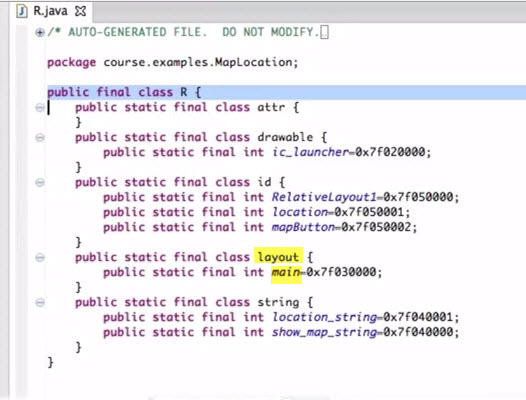
Android generates a called
R from the application•
the layout class with main field gives you a handle to the main.xml file
•
implement classes
•
involves writing at least one activity
•
in
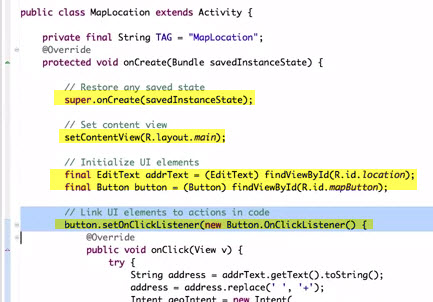
onCreate() you do four things:•
1. restore saved state
•
2. set content view
•
3. initialize UI elements
•
4. attach to those UI elements
•
e.g. MapLocation application
•
MapLocation extends Activity
•
protected void onCreate(Bundle savedInstanceState)
•
a data structure containing anything Android might have the last time
•
onCreate has to call super.onCreate
•
setContentView(R.layout.main)
•
for the UI elements, you pass in the id of the desired
•
setOnClickListener(...) defines what happens when user clicks
•
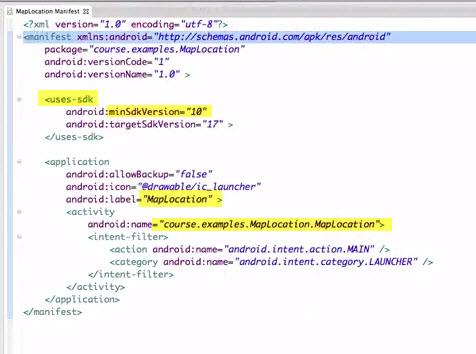
package application (.apk file)
•
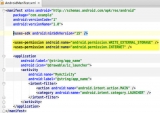
AndroidManifest.xml
•
name of application
•
list of components
•
other information
•
permissions
•
hardware features required (e.g. camera)
•
minimal application
•
minimum API level
•
install and run
•
you can do this in eclipse or from the command line using the adb tool, e.g.
•
adb install PATH_TO_APK•
activity class
•
primary class for interacting with users
•
provide a visual interface
•
by convention, activities should be modular
•
a single, focused thing
•
viewing e-mail
•
logging in
•
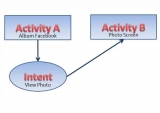
you then string together tasks
•
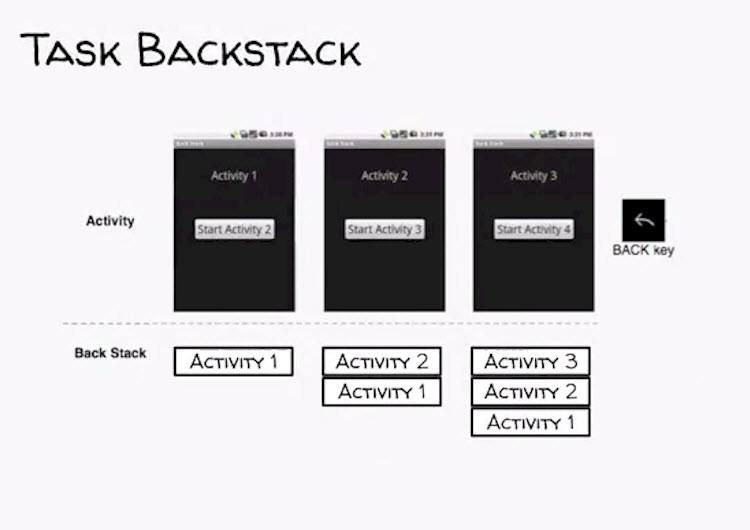
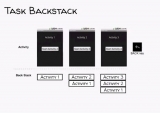
task backstack
•
tasks need to be properly and resumed
•
a task is a set of related activities
•
can span multiple applications
•
when user hits home button, the current task is temporarily
•
when activity is launched, it's pushed onto the task
•
when it is destroyed:
•
user hit back button
•
program terminated itself
•
android decided to kill that activity in order to reap its resources
•
when task1 e.g. has a button to got to task2, its state is captured so user can go back to it
•
when back button is clicked, activity is killed, and next activity in task backstack is started
•
the activity lifecycle
•
acvitities have a but are not in control of it
•
depend on user behavior
•
android can activities
•
lifestyle states
•
resumed/running state
•
activity is visible and can interact with it
•
paused
•
visible
•
user not with it
•
can be terminated
•
stopped
•
no longer visible
•
android may terminated it
•
activities need to behave differently during different states of lifecycle
•
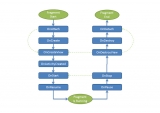
Android announces lifecycle changes by calling template
•
onCreate
•
onStart
•
onResume
•
onPause
•
onRestart
•
onStop
•
onDestroy
•
you can override any of these in order to hook in for each state
•
simple application: one activity, starts, waits, closes
•
the visible lifetime is between onStart() and onStop()
•
the interactive lifetime is between onResume() and onPause()
•
e.g. if the phone goes to sleep, then onResume() is called
•
if e.g. in the map application map covers the whole activity, then onStop() is called since the activity is no longer visible
•
then when back button clicked: onResume(), onStart()
•
onStop() may be skipped if Android the application
•
onCreate()
•
four functions
•
super.onCreate()
•
sets activity's content view
•
retain reference to UI views
•
configure views
•
onRestart()
•
to handle special processing
•
e.g. if you have to check the database again or some API call
•
onStart()
•
activity is about to become visible
•
loading persistent application state
•
onResume()
•
activity is visible and about to start interacting with the
•
starting animations
•
playing background soundtrack
•
onPause()
•
shut down foreground-only behaviors
•
save persistent state
•
onStop()
•
may be restarted later so:
•
cache actvitity state
•
remember: may not be called when activity terminates, e.g. if Android kills it due to low
•
therefore, save activity state in since that is always called before activity is terminated
•
onDestroy()
•
release activity resources
•
shutting down private threads started by this activity
•
may not be called, e.g. if activity is killed
•
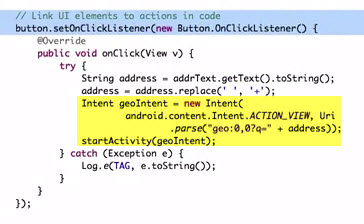
starting activities programmatically
•
create intent
•
pass it to startAcvitity()
•
pass it to startAcvitityForResult()
•
assumes a result come back
•
Activity.setResult()
•
passing in a result code and data
•
and a resultCode:
•
RESULT_CANCELED
•
RESULT_OK
•
RESULT_FIRST_USER
•
confiuration changes
•
languages use, screen size, device
•
when these change, Android will usually kill running activities and restart them with the changed configuration
•
e.g. from portrait mode to landscape mode and back
•
the activity will be killed and twice
•
so if your startup code is slow, it will affect the user experience
•
to speed this up, you can save and important state information
•
cache hard to data by calling
onReatinNonConfigurationInstance()•
called between onStop() and onDestroy()
•
then in onCreate(), call
getLastNonConfigurationInstance()•
or you can manually handle it, define this in the AndroidManifest.xml

•
then the activity's onConfigurationChanged() method gets an specifying the new configuration, e.g. if from landscape to portrait
 |  |  |
 |  |  |
 |