EDWARD'S LECTURE NOTES:
More notes at http://tanguay.info/learntracker
C O U R S E
Programming Mobile Applications for Android
Adam Porter, University of Maryland
 |
C O U R S E L E C T U R E The Activity Class Notes taken on June 23, 2014 by Edward Tanguay |
•
resources
•
layout files
•
specifies what some part of your application will look like
•
these are XML files
•
in
res/layout/*.xml•
access them in Java as
R.layout.layout_name•
access them by other resources as
@layout/layout_name•
you can have multiple layout files which android can choose from at runtime based on your configuration
•
e.g.
main.xml•
RelativeLayout
•
EditText
•
Button
•
layout-land
•
if held horizontal, then this layout file will be used
•
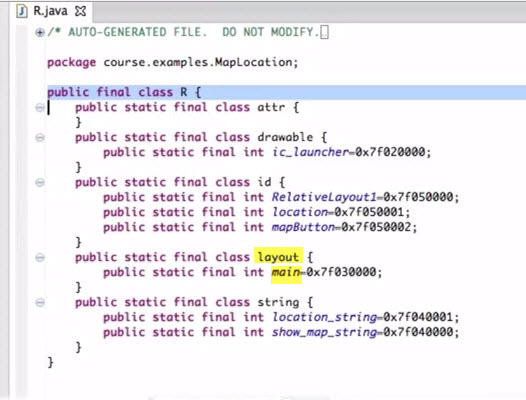
Android generates a class called
R from the application•
the layout class with main field gives you a handle to the main.xml file
•
implement classes
•
involves writing at least one activity
•
in
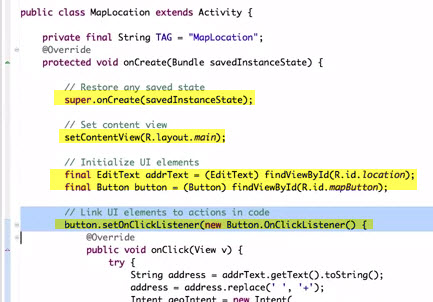
onCreate() you do four things:•
1. restore saved state
•
2. set content view
•
3. initialize UI elements
•
4. attach code to those UI elements
•
e.g. MapLocation application
•
MapLocation extends Activity
•
protected void onCreate(Bundle savedInstanceState)
•
a data structure containing anything Android might have saved the last time
•
onCreate has to call super.onCreate
•
setContentView(R.layout.main)
•
for the UI elements, you pass in the id of the desired element
•
setOnClickListener(...) defines what happens when user clicks
•
package application (.apk file)
•
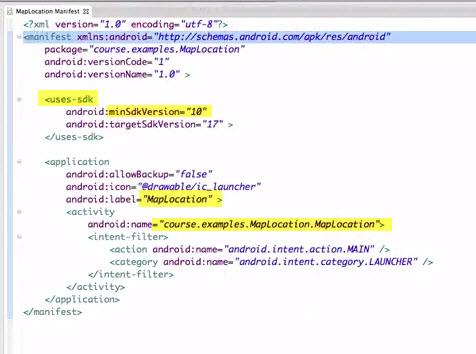
AndroidManifest.xml
•
name of application
•
list of components
•
other information
•
permissions
•
hardware features required (e.g. camera)
•
minimal application
•
minimum API level
•
install and run
•
you can do this in eclipse or from the command line using the adb tool, e.g.
•
adb install PATH_TO_APK•
activity class
•
primary class for interacting with users
•
provide a visual interface
•
by convention, activities should be modular
•
a single, focused thing
•
viewing e-mail
•
logging in
•
you then string together tasks
•
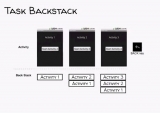
task backstack
•
tasks need to be properly suspended and resumed
•
a task is a set of related activities
•
can span multiple applications
•
when user hits home button, the current task is temporarily closed
•
when activity is launched, it's pushed onto the task backstack
•
when it is destroyed:
•
user hit back button
•
program terminated itself
•
android decided to kill that activity in order to reap its resources
•
when task1 e.g. has a button to got to task2, its state is captured so user can go back to it
•
when back button is clicked, activity is killed, and next activity in task backstack is started
•
the activity lifecycle
•
acvitities have a lifecycle but are not in control of it
•
depend on user behavior
•
android can kill activities
•
lifestyle states
•
resumed/running state
•
activity is visible and user can interact with it
•
paused
•
visible
•
user not interacting with it
•
can be terminated
•
stopped
•
no longer visible
•
android may terminated it
•
activities need to behave differently during different states of lifecycle
•
Android announces lifecycle changes by calling template methods
•
onCreate
•
onStart
•
onResume
•
onPause
•
onRestart
•
onStop
•
onDestroy
•
you can override any of these in order to hook in functionality for each state
•
simple application: one activity, starts, waits, closes
•
the visible lifetime is between onStart() and onStop()
•
the interactive lifetime is between onResume() and onPause()
•
e.g. if the phone goes to sleep, then onResume() is called
•
if e.g. in the map application map covers the whole activity, then onStop() is called since the activity is no longer visible
•
then when back button clicked: onResume(), onStart()
•
onStop() may be skipped if Android terminates the application
•
onCreate()
•
four functions
•
super.onCreate()
•
sets activity's content view
•
retain reference to UI views
•
configure views
•
onRestart()
•
to handle special processing
•
e.g. if you have to check the database again or some API call
•
onStart()
•
activity is about to become visible
•
loading persistent application state
•
onResume()
•
activity is visible and about to start interacting with the user
•
starting animations
•
playing background soundtrack
•
onPause()
•
shut down foreground-only behaviors
•
save persistent state
•
onStop()
•
may be restarted later so:
•
cache actvitity state
•
remember: may not be called when activity terminates, e.g. if Android kills it due to low memory
•
therefore, save activity state in onPause since that is always called before activity is terminated
•
onDestroy()
•
release activity resources
•
shutting down private threads started by this activity
•
may not be called, e.g. if activity is killed
•
starting activities programmatically
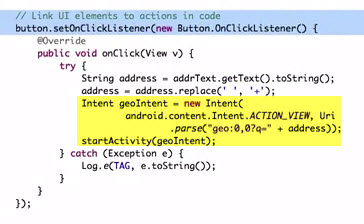
•
create intent
•
pass it to startAcvitity()
•
pass it to startAcvitityForResult()
•
assumes a result come back
•
Activity.setResult()
•
passing in a result code and data
•
and a resultCode:
•
RESULT_CANCELED
•
RESULT_OK
•
RESULT_FIRST_USER
•
confiuration changes
•
languages use, screen size, device availability
•
when these change, Android will usually kill running activities and restart them with the changed configuration
•
e.g. from portrait mode to landscape mode and back
•
the activity will be killed and restarted twice
•
so if your startup code is slow, it will affect the user experience
•
to speed this up, you can save and cache important state information
•
cache hard to recalculate data by calling
onReatinNonConfigurationInstance()•
called between onStop() and onDestroy()
•
then in onCreate(), call
getLastNonConfigurationInstance()•
or you can manually handle it, define this in the AndroidManifest.xml

•
then the activity's onConfigurationChanged() method gets an object specifying the new configuration, e.g. if from landscape to portrait